October 27, 2026 • 6 Min Read

How to swap a face in a photo with AI

Melius Team
How to swap a face in a photo with AI
Melius Team

Key takeaways

  • A face swap needs two photos: the image you're editing and a clear, front-facing photo of the face going into it.
  • Most bad swaps come from mismatched photos. A similar head angle, the same light direction, and a source face at least as sharp as the target matter more than the tool.
  • Fix the edges in place. Inpaint one area, such as the hairline or jaw, instead of rerunning the whole image.
  • Only swap faces you have permission to use. Publishing a swap that misleads people breaks the terms of many tools, Melius included, and some uses are illegal.
  • On Melius, attach both photos to a brief to Mel, the Melius agent, say which is which, and list what has to stay untouched. Mel builds the edit on the canvas, and you can take over any step.

How an AI face swap works

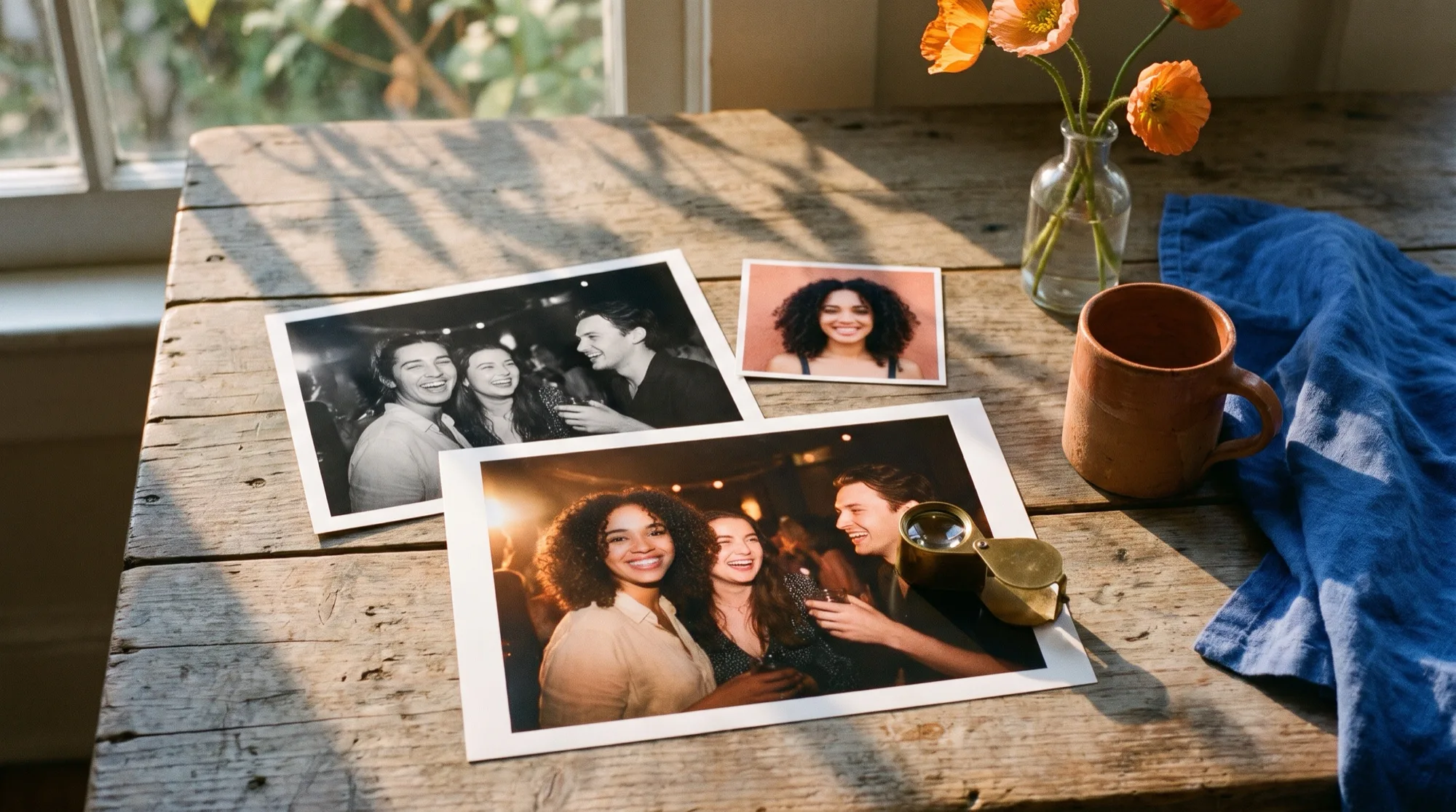
To swap a face in a photo with AI, give an image model two inputs, the photo you want to change and a photo of the new face, and tell it to replace the face while keeping the pose, hair, clothes, lighting, and background. The model blends the new face into the scene, so it can match skin tone and shadow in a way a cut-and-paste edit can't.

Melius is the AI-native operating system for creatives, built around AI agents for creative work. Here the whole job is a short brief to Mel, who connects both photos to an image node on the canvas, writes the prompt, and runs it. Every step stays on the canvas for you to adjust afterward.

What to attach and what to tell Mel

  1. Attach the photo you're editing. Drag it into the Mel chat box or use the attachment button. The chat takes JPEG, PNG, WebP, and GIF files, up to 15 per message, and each one also lands on the canvas as a file node.
  2. Attach the face. Use a clear photo where the face is front-on, evenly lit, and not covered by hands, hair, or sunglasses. Two or three photos of the same person from slightly different angles help the model hold their likeness.
  3. Say which file is which. "The first image is the scene, the second is the face" removes the most common mix-up.
  4. Name what has to stay. Pose, expression, hair, clothing, background, and the color grade are all fair game for a model unless you fence them off.
  5. Ask for a few versions. Each run reads the face slightly differently, so three or four takes give you one to keep.

A sample brief

Here's a brief written the way you'd hand the job to a retoucher:

"I've attached two photos. The first is a group shot from a product launch. The second is a headshot of Dana, who missed the shoot and has approved being added. Replace the face of the person on the far left with Dana's face. Keep her expression neutral and slightly smiling, and keep the original hair, glasses, jacket, pose, and background exactly as they are. Match the warm stage lighting from the right and the skin tone to the scene. Give me three versions at 2K."

From that, Mel picks an image model that edits from reference images and generates the three versions.

Taking over from what Mel built

If a take doesn't quite land, take over on the canvas.

  • Try another model. Change the model on the image node and run it again. Nano Banana Pro and the other models in our library of leading models each read a face a little differently.
  • Fix one area. Open the image full screen, use Inpaint to paint over the hairline, jaw, or ear, and describe the fix. The rest of the photo stays as it is.
  • Change only what you name. Ideogram 4.5's Precise edit keeps everything outside your instruction pixel for pixel the same, which suits small follow-up corrections such as eye color or a stray shadow.
  • Upscale the keeper. Use the Upscale tool on the final image node before export if it's going to print or a large screen.

How to make a face swap look real

  • Match the head angle. A face shot straight-on won't sit well on a head turned three-quarters. Pick a source photo with a similar pose.
  • Match the light. Note where the light comes from in the scene and choose a face photo lit from the same side, or describe the light in the brief.
  • Start with a larger face. Adobe's own face swap guide recommends a source face that's larger than the one it replaces, since enlarging a small face to fit leaves it pixelated.
  • Watch skin tone at the neck. The join between face and neck is where a mismatch shows first. Ask for the tone to match the neck and hands in the scene.
  • Check hair and glasses last. Strands across the face and the frames of glasses are where artifacts collect. Inpaint them one at a time.

The same rules for holding a likeness apply when a person has to appear across a whole campaign. See how to keep AI images and video on brand with reference images, and for portraits of a whole team, tools to turn a picture into a professional headshot.

A face swap of a real person needs that person's permission. In the US, the TAKE IT DOWN Act makes it a crime to publish nonconsensual intimate images, including AI-generated ones, and since May 19, 2026 covered platforms must remove them within 48 hours of a valid request. In the EU, Article 50 of the AI Act has required businesses and professionals who publish a deepfake to disclose that it was generated or altered since August 2, 2026, with lighter rules for clearly artistic or satirical work.

Our terms prohibit using Melius to create deepfakes or deceptive synthetic media intended to mislead. Swapping your own face into a scene, adding a colleague who approved it, or putting a fictional character's face on a model all stay well inside that line.

Frequently asked questions

Can AI swap faces in a photo for free?
Yes, several tools offer free face swaps, usually with daily limits or watermarks. FaceFusion is free, with its code public on GitHub, but runs on your own computer, and web tools such as Remaker and Canva's Faceswap app include free tiers.
How do I make an AI face swap look realistic?
Use a source face that matches the target's head angle and lighting, and make it at least as sharp as the face it replaces. Then fix the hairline, jaw, and neck one area at a time with inpainting instead of rerunning the whole image.
Can I swap faces in a group photo?
Yes. Say which person to change by position or clothing ("the man on the far left in the blue shirt"), and attach a separate face photo for each person you're swapping.
Is face swapping legal?
In most places, yes, when the person whose face you use has agreed to it. Publishing a swap without consent can break platform rules and, for intimate images in the US, federal law under the TAKE IT DOWN Act.
Can I use a face-swapped image commercially?
You own the content you create on Melius and can use, publish, and distribute it commercially, subject to the underlying model providers' terms. Melius doesn't claim ownership of your work and doesn't use it to train AI models. You still need the consent of the person whose face you use.

Got two photos and a shot in mind? Open Melius, attach both to a brief to Mel, and say which face goes where.

Related Articles