August 19, 2026 • 7 Min Read
August 31, 2026 • 9 Min Read
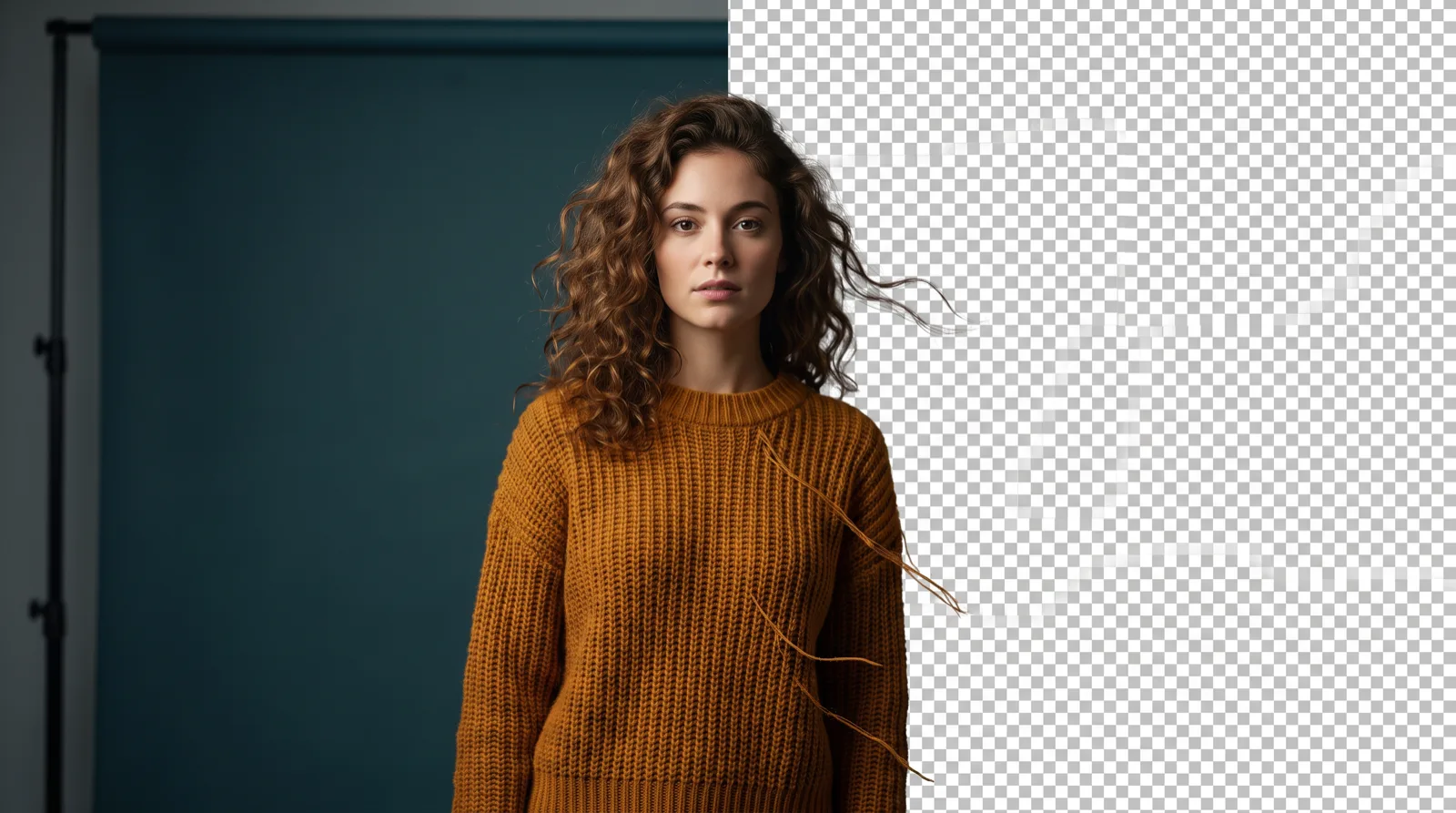
Start by deciding which of two jobs you actually have, because they're different problems and the tools that win them are different. Removing a background is a cutout problem, judged on edges: hair, glass, thin straps, anything semi-transparent. Replacing one is a generation problem, judged on whether the light and perspective of the new scene match the subject you dropped in.
Most people ask for one and need the other. The second most common mistake is buying a per-image utility for a job that repeats a thousand times, or a batch pipeline for a single editorial image.
Four criteria, and the first one eliminates most tools for most professional work.
Every tool handles a clear-edged product. Hair against a busy background, a wine glass, a chain-link fence, motion blur: those separate them. Test your worst image, never your easiest.
The usual giveaway in a replaced background isn't a ragged cutout, it's a subject lit from the left dropped into a scene lit from the right. Either the tool relights the subject or it generates the scene from a description of the existing light.
A thousand pack shots and one hero image are opposite requirements. Per-image tools and batch pipelines are priced and shaped for one each, and using the wrong one is expensive in either direction.
A cutout is rarely the deliverable. It gets composited, resized, branded and shipped. Count those steps when you compare, because a tool that hands back a transparent PNG has finished a third of the work.
Remove background | Replace background | Ease of starting | Next steps in the same tool | |
Melius | 5/5 | 5/5 | Describe it, no setup | 5/5 |
Photoroom | 5/5 | 4/5 | One upload | 3/5 |
Clipdrop | 5/5 | 4/5 | One upload | 3/5 |
Flair | 2/5 | 5/5 | Arrange it yourself | 3/5 |
ComfyUI | 3/5 | 3/5 | Highest entry barrier | 5/5 if you can build them |
Melius, the Agentic OS for creative work, is a node-based creative canvas that AI agents operate alongside you. Background editing isn't a separate mode: every image node carries its own editing tools, so the edit happens where the image already lives.
Melius has three built-in tools that cover most of the work. Remove Background outputs a transparent PNG. Inpaint lets you mask a region and describe what fills it, which is right when most of the frame must stay untouched. Upscale raises resolution afterward if you drafted low.
Two qualifiers. There's no dedicated relight control, so matching light means specifying it in the prompt or picking the model that handles it best, which is less direct than a slider. And a canvas is more tool than a single cutout needs: if you want one transparent PNG in ten seconds, opening a canvas is the slow route.
Best for: background work that's one step inside a larger piece of creative, and teams who want the cutout, the new scene and the channel variants in one place.
Photoroom is the volume answer, and background removal is one of its better use cases. Bulk background removal and batch editing are core, so a catalog goes through it as a queue.
Plans are metered in AI credits and monthly exports, which lets you size a plan against how many product images you actually process, and there's an API for teams putting it inside their own pipeline.
It aims squarely at product and listing imagery, and reviewers report its effectiveness is limited beyond that scope. If the job is one editorial image where the background has to be invented and art-directed, this is the wrong shape, and there is no canvas here for composing a scene from references.
Best for: catalogs, marketplace listings, and any case where the same background treatment is being run without a need for flexibility.
Clipdrop is an effective utility here, and its structure is why. It's eight separate tools, not a workflow: background removal, replace background, cleanup, uncrop, relight, text remover, upscale and text to image. You open the one you need and you're done.
Relight deserves singling out, because mismatched lighting is the usual reason a replaced background looks wrong and few tools address it directly.
There's no brand memory and no batch, so it stays a per-image tool. That's fine for a handful of images and wrong for a catalog, and it means nothing you do in one session informs the next.
Best for: single images and quick repairs.
Flair is the tactile option here. You stage a scene on a drag-and-drop canvas, arranging props around your product, then run an AI pass to finish it, which makes background composition something you position rather than something you describe.
Flair is built for e-commerce and it stays there. There's no video, audio or wider content pipeline in the same place, and no agent assembling the work, so you're doing the staging. For product backgrounds specifically that hands-on quality is a strength, and for a portrait or an editorial image it's the wrong shape.
Best for: e-commerce and fashion teams who want to do hands-on work arranging a product scene.
ComfyUI is the choice when nothing off the shelf does what you need. It's an open-source node-based interface where you build the pipeline yourself, so any masking, matting or compositing approach that exists can be assembled at the precision you want.
You pay in time and expertise. Setup, model management and debugging are yours, with no support line when a workflow breaks.
Best for: technical users with a specific pipeline requirement no product covers.
Decide first whether you're removing or replacing, because they're different nodes. Remove Background returns a transparent PNG for a clean cutout. The Background Generator template builds a new scene around the subject, and the thing to watch there is light direction: a subject lit from one side dropped into a scene lit from the other is the tell.
For a small object or stray text in the frame, the docs point the other way from instinct: regenerating the region with an instruction usually beats drawing a mask. Inpaint is for when most of the frame has to stay exactly as it is. Once the image is right, Magic Resize produces each channel ratio by re-composing rather than trimming, and the Studio node handles layered text on top. If you'd rather hand the whole sequence over, an agent can drive the canvas over MCP and run the steps for you.
Hair, glass and other semi-transparent edges remain the category's weak point. Test your hardest image before you commit to a pipeline.
If the subject is a person rather than a product, the next decision is whether the portrait can stay recognizable and consistent across a team: see tools to turn a picture into a professional headshot.
If the new background is meant to be painted rather than photographic, the tools that handle a painterly pass are a different set: see the best AI tools to turn images into a painting.
If the background is one step inside a larger product job, the wider question is which tool holds the product itself steady across a set: see the best AI tools for producing product photo variants.
Credits are shared across every model and every step, so a cutout, a generated scene and five channel ratios draw from the same balance. See pricing, or open Melius and try it on one image.
August 19, 2026 • 7 Min Read

August 7, 2026 • 5 Min Read
July 21, 2026 • 8 Min Read