
November 12, 2026 • 10 Min Read
November 13, 2026 • 8 Min Read
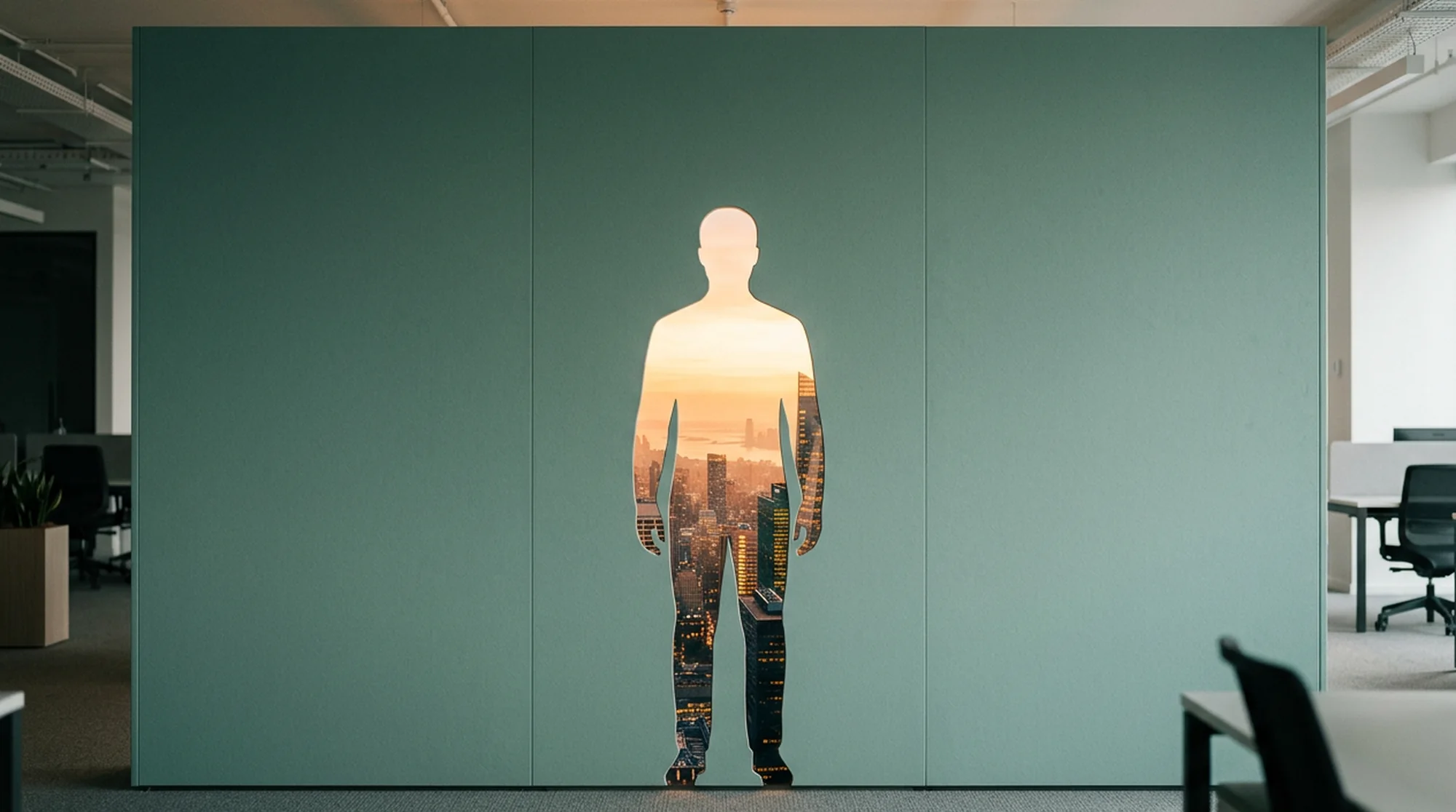
They're two jobs, and they need different tools. Removing a background means cutting the person or product out cleanly so you can put something else behind them, ideally with a transparent file you can layer in an editor. Replacing a background means a model regenerates the scene around the subject while keeping their face, movement, and lip sync, so the light on them matches the new place.
The comparison looks at edge quality around hair and moving subjects, whether the performance and audio survive, how long a clip each accepts, and what each can export, including transparent video.
Tool | Remove | Replace | Transparent export | Where it runs |
Melius | Yes, Remove Background | Yes, generative video models | Yes, WebM | Web and desktop app, MCP, API, and CLI |
Kapwing | Yes | Color, image, video, or AI backdrop | No | Browser |
VEED | Yes, with a person in shot | Color, image, video, or AI scene | No | Browser and iOS |
Descript | Yes, Green Screen effect | Image or stock background | No | Desktop and web |
Luma | No | Yes, Modify Video | No | Web and API |
Runway | Yes, in Edit Studio | Yes, Aleph 2.0 | Through the Premiere Pro, After Effects, and DaVinci Resolve plugins | Web, plus Premiere Pro, After Effects, and DaVinci Resolve plugins |
Premiere Pro | Yes, Object Mask | By compositing on a track below | Yes, through export settings | Mac and Windows |
Melius, the AI-native operating system for creatives, gives you AI agents for creative work, and you direct them. Give Mel, the Melius agent, a clip and say whether you want the background gone or a different place behind the subject. Mel then picks the tool or the model from its AI video generation tools or library of models.
What it does well. The Remove Background tool returns a transparent WebM by default, ready to layer over another clip. For a new setting, Luma Ray 3.2 rebuilds the scene on source footage up to 18 seconds long, Kling 3.0 Omni rewrites shots between 3 and 15 seconds, and Ditto swaps backgrounds from reference images. Every version stays on its node, so you can compare two backgrounds side by side.
The trade-off. The generative models work best on short clips, so a long take should be cut into shots before its scene can change.
Best for. Projects that need clean cutouts and fully new scenes from the same footage.
Kapwing is a browser video editor that works on desktop and mobile. Its Remove Background effect takes the background out in one click, or you can ask its Kai assistant to do it.
What it does well. After removal you can put a solid color, a stock or uploaded image or video, or an AI-generated backdrop behind the subject, all inside the same project. A separate Chroma Key tool handles footage shot against a solid color.
The trade-off. Kapwing doesn't export video with a transparent background, so a removed background comes out white. Free exports carry a watermark, and objects can't be tracked by hand.
Best for. Social clips that need a new backdrop in a few minutes.
VEED is a browser editor with two background tools under AI Tools. Background Remover works on any background as long as there's a person in the shot, and Green Screen removes one solid color, tuned with a sensitivity slider.
What it does well. Behind the subject you can place a color, an image, stock footage, or an AI-generated scene, and the free plan includes full use of Green Screen.
The trade-off. VEED's editor never exports transparent video, and free accounts get one try of Background Remover before needing a paid plan.
Best for. Presenter and talking-head clips shot without a green screen.
Descript edits video through its transcript, and its Green Screen effect removes the background without a physical screen. You apply it to every scene or just one, and switch it off later without reprocessing.
What it does well. You can replace the background with an uploaded image or a stock one while editing the words and cuts in the same place. For footage that really was shot on green, Descript's Chroma Key effect is there too.
The trade-off. The effect uses AI credits and an internet connection, and Descript advises keeping other people, pets, and props like microphones out of the frame.
Best for. Podcasts, tutorials, and interviews edited from the transcript.
Luma's Modify Video on Ray3.2 regenerates the world around a performance, which Luma pitches as swapping the wall, the world, or the wardrobe while the lighting holds and the performance survives.
What it does well. It takes clips of up to 20 seconds at 24 fps, 15 at 30 fps, or 7 at 60 fps, and outputs up to 1080p. With face tracking on, the actor's lip sync carries through, and Motion and Structure settings control how closely the output tracks the source's movement and shapes.
The trade-off. Luma says heavy camera shake, fast or chaotic action, blurry, dark, or low-resolution footage, crowded subjects, and blocked faces all weaken results.
Best for. Putting one actor in a new location without a reshoot.
Runway retired its standalone Remove Background tool in April 2026, and its Edit Studio, which runs on the Aleph 2.0 model, can remove or replace backgrounds across single shots or sequences of up to 30 seconds.
What it does well. One edit can cover a multi-shot sequence of up to 10 cuts at 480p to 1080p. Runway's plugin for Premiere Pro adds a Remove Background option that produces alpha-ready keys without a green screen, steered by a prompt naming the subject.
The trade-off. ProRes and PNG sequence export are kept for Runway's Max, legacy Unlimited, and Enterprise plans, and clips need to run between 2 and 30 seconds at 24 to 30 fps.
Best for. Editors who want a new background across several connected shots.
Premiere Pro's Object Mask tool detects and selects people or objects right in the Program Monitor. Version 26.5 recognizes more objects and draws more accurate boundaries on complex shapes.
What it does well. Smooth mode is built for hair, fur, fabric, and translucent edges, with a Sharpness control for flyaway strands. Put the masked clip on a track above a new background and the composite stays editable in the timeline.
The trade-off. Mask data sits in a separate folder next to the project, so moving a project without that folder takes the masks offline.
Best for. Editors already cutting the project in Premiere Pro.
Drop the clip on the canvas, then tell Mel what the new place should be and what can't move.
Brief to Mel: "This is a 12-second clip of our founder talking in a cluttered office. Give me one version with the background removed so I can drop it into our launch video, and one where she's on a rooftop at golden hour. Keep her face, her hand movements, and the audio exactly as they are."
Mel runs Remove Background for the cutout and sends the rooftop version to a video editing model, each on its own node. Wrong light on her face in the rooftop version? Edit that node's prompt or try a different model, and rerun only that version.
For more on editing photo backgrounds, see AI background editing, and for product clips, AI product videos.
Footage shot in the wrong place? Drop it on a Melius canvas and tell Mel where the scene should be.
November 12, 2026 • 10 Min Read

November 11, 2026 • 10 Min Read

November 8, 2026 • 11 Min Read