November 14, 2026 • 8 Min Read
November 15, 2026 • 9 Min Read
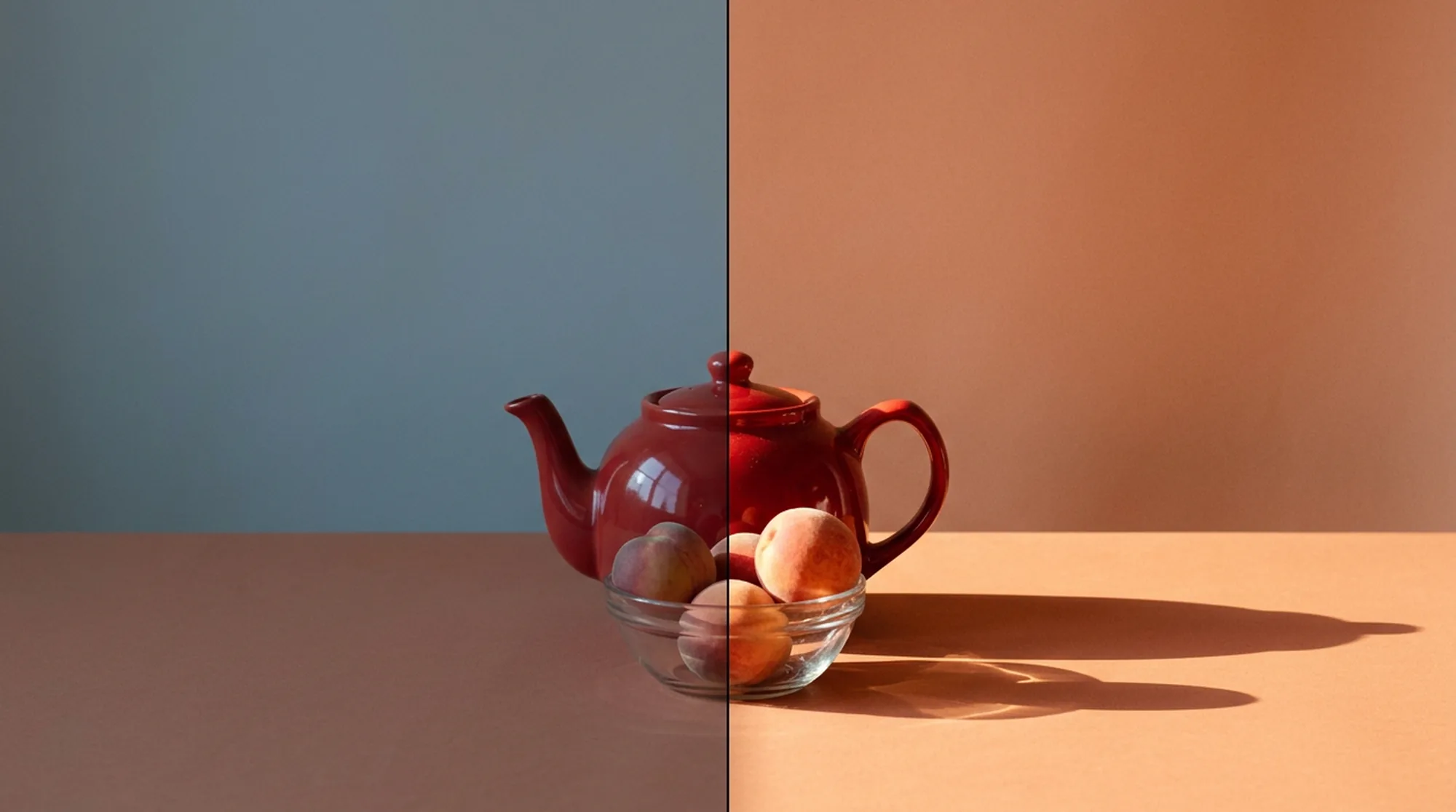
An AI photo editor changes a picture you already have. You ask for a cable to disappear or a frame to widen, and the tool rebuilds that part while trying to leave the rest alone. How well it leaves the rest alone is most of the difference between these tools.
We put four questions to each one, working from its maker's current pages and help docs. Does an edit stay inside the area you asked about? How cleanly does it handle hard areas like hair and glass? Does the light still make sense afterward? And what resolution comes out the other end?
Edits that stay put. The best edit changes what you named and nothing else. Some tools regenerate a wider area than you selected, which can shift a face or a line of text you meant to keep.
Clean removals on hard areas. Taking a lamp post out of open sky isn't hard. A stray hair or a reflection in glass is where tools separate.
Lighting that holds together. A new object or background needs shadows and highlights that match the scene. A subject lit from the left in a scene lit from the right looks pasted in.
Resolution after the edit. Several editors cap the size of generated areas or reserve high-resolution export for higher plans, so a 24-megapixel photo can come back smaller than it went in.
Tool | Best for | Standout edit feature | Platform |
Melius | Edits that need several models on one photo | Remove object, Inpaint, Precise edit, Topaz upscale up to 4x | Web and desktop app, MCP, API, and CLI |
Luminar | Photographers editing on a desktop | GenErase, GenSwap, and GenExpand | Mac and Windows |
Picsart | Quick edits on a phone or in a browser | AI Replace with brush or auto-select | Web, iOS, Android, Mac, and Windows |
Google Photos | Editing your own library by asking | Conversational editing | Android and iOS |
Magnific | Relighting and upscaling | Relight and the Precision upscaler | Web, API, and Photoshop plugin |
Photoroom | Product photos in bulk | Edit with AI and batch edits of 250 images | Web, iOS, and Android |
Canva | Photos inside a design layout | Magic Edit, Magic Eraser, and Magic Grab | Web, desktop, and mobile |
Melius, the AI-native operating system for creatives, gives you AI agents for creative work, image editing included. Its AI photo editor starts with you describing the change to Mel, the Melius agent, the way you'd brief a retoucher. Mel matches each request to a tool or a model and saves the result as a new version on the canvas.
What it does well. The Remove object, Inpaint, Outpaint, and Remove Background tools sit next to edit models with different strengths. Ideogram 4.5's Precise edit keeps every untouched pixel identical, and GPT Image 2.5 edits against up to 16 connected references. The Topaz upscaler enlarges a photo up to 4x, with face enhancement for portraits.
The trade-off. Melius doesn't have slider-based tools for exposure, curves, or color grading.
Best for. Edits that go beyond one fix, such as removing an object, changing the background, and upscaling the same photo for print.
Luminar is Skylum's photo editor for Mac and Windows. Its August 2026 release dropped the "Neo" from the name and grouped the generative tools in a new Extra tools section of the sidebar.
What it does well. GenErase removes objects, and GenSwap replaces or inserts something from a text prompt. GenExpand widens the frame by up to 25% per pass, and you can run it again on the result. The April 2026 update added portrait tools for dark circles, blemishes, shine, and skin smoothing.
The trade-off. The generative tools run in the cloud and need an internet connection, and there's no free desktop version, just a trial and a one-time license that includes a year of generative AI access. A free web plan covers basic edits.
Best for. Photographers who want generative edits inside the same app as their catalog and raw adjustments.
Picsart is a photo and design editor on the web, iOS, Android, Mac, and Windows. Its AI tools include Remove Object, AI Replace, Background Remover, Expand, Image Upscale, Unblur, and Enhance.
What it does well. AI Replace lets you brush an area or auto-select people, clothes, or the sky, then describe the change, and Picsart says it matches the lighting, color, and texture around it. Picsart also connects to ChatGPT, Claude Code, and Cursor through MCP.
The trade-off. Free AI use is limited, so for regular AI editing you'll need a paid Pro or Ultra plan.
Best for. Social posts and personal photos edited on the go.
Google Photos lets you type or say an edit, such as "remove the glare", and applies it to a photo in your library. Some of its edits, such as restyling, use Google's Nano Banana model, and AI-edited photos carry metadata you can check under AI info.
What it does well. It's free and sits where many people's photos already live. "Save as copy" keeps the original untouched, and a regular save can be reverted later.
The trade-off. Availability depends on where you live, since it isn't out in every country yet. It also needs a personal Google account rather than a work or school one, and you have to be 18 or older.
Best for. Fixing your own photos without installing another app.
Magnific is the platform formerly called Freepik. It relaunched on April 28, 2026 under the name of the upscaler it had bought. It runs on the web, through an API, and in a Photoshop plugin.
What it does well. Relight places up to three lights with set direction, intensity, and color, or starts from a preset or a reference image. The Precision upscaler enlarges a photo and doesn't invent new elements, while the Creative mode adds detail of its own.
The trade-off. Paid use runs on credits, and the Creative upscaler can reinvent textures, so photos that need to stay faithful belong in Precision mode.
Best for. Changing the light in a photo or preparing a small image for print.
Photoroom is a photo editor built for products and online stores, on the web, iOS, and Android. Its AI tools include Retouch, Image Enhancer for upscaling, AI Expand, the background remover, AI Backgrounds, and Edit with AI, which takes written edit requests.
What it does well. Batch editing applies changes to up to 250 images at once on the web, and batch editing is in the iOS and Android apps too. Through the API, AI Relight fixes overexposed and underexposed shots.
The trade-off. It's tuned for product shots, and 4K export is kept for its Ultra plan.
Best for. Sellers editing a catalog of product photos.
Canva is a design tool with AI photo editing built in. Magic Edit changes a selected area from a description, Magic Eraser brushes objects away, and Magic Grab lifts an object out so you can move or resize it while the background fills in.
What it does well. The edit happens in the same file as the poster or slide, so there's no export and re-import step.
The trade-off. Magic Edit and Magic Grab are on paid plans, AI features draw on usage allowances, and Magic Grab doesn't work on images placed inside frames or grids.
Best for. Designers and marketers who edit photos as part of a layout.
Upload the photo and tell Mel two things, what should change and what has to stay exactly as it is.
What you'd send Mel: "This is our shop window at dusk. Take out the reflection of the street sign in the glass, swap the gray sky for a clear evening blue, and keep the lettering on the window untouched. Then upscale it to 4x for a print poster."
Mel handles the sign with Remove object, runs the sky change on a model that keeps the rest of the frame fixed, and sends the result to the upscaler. Each step lands as its own version, so you can step back to any of them. If the sky edge looks wrong near the lettering, brush over it with Inpaint and describe the fix. The same canvas handles AI background editing and new images from the AI image generator when an edit isn't enough.
Have a photo with three fixes on the list? Upload it to Melius and tell Mel what to change.
November 14, 2026 • 8 Min Read
November 12, 2026 • 10 Min Read
November 11, 2026 • 10 Min Read