November 2, 2026 • 9 Min Read
November 2, 2026 • 6 Min Read
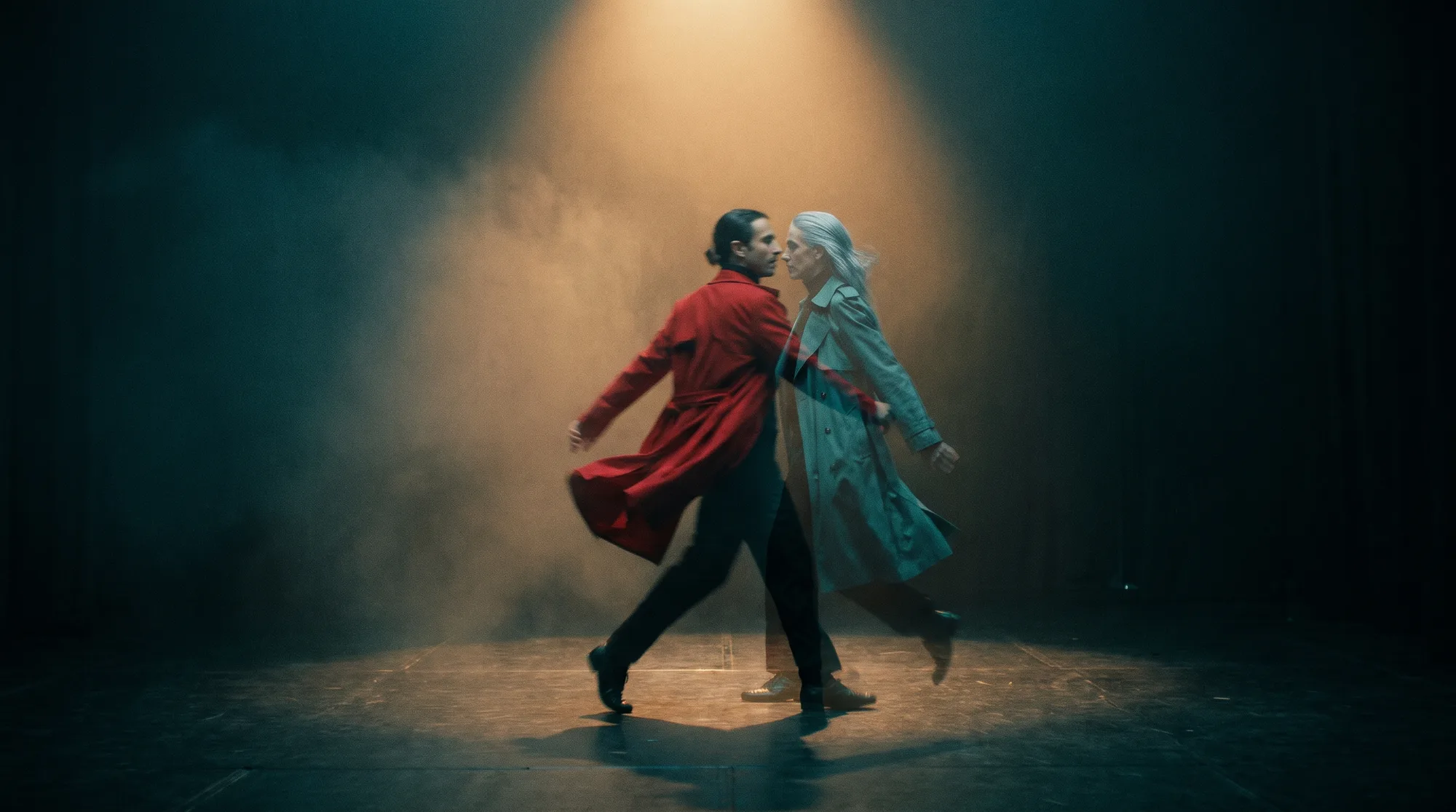
The tools below swap the person in a video you already have for a different character, while the camera move, the motion, and the scene stay the same. Melius does it with Kling 3.0 Omni on a canvas that now runs Kling 4.0 as well. Magic Hour and Viggle work from one reference image in a browser or app. Higgsfield Character Swap swaps in the whole body along with the face, and Luma Ray3 Modify keeps the clip's audio.
It's a different job from generating a new video of a character. Replacement starts from footage that's already shot, so the result inherits its timing, its lighting, and its performance.
We compared the tools on whether they work on existing footage, how you specify the new character, how long a clip they accept, what happens to the original audio, and where they run.
Tool | How you specify the new character | Source clip | Where it runs |
Melius | Reference images in Ditto or on a video node, or a brief to Mel | 3 to 15 seconds on Kling 3.0 Omni | Web app, API, CLI, MCP |
Magic Hour | One reference image | Not stated | Browser |
Viggle | An image plus your video or a template | Not stated | Web, mobile app, API |
Higgsfield | One character photo | Not stated | Web |
Luma Ray3 Modify | A character reference image | Up to 10 seconds | Web |
Melius is the AI-native operating system for creatives, where you do creative work alongside AI agents on a node-based canvas. Replacing characters runs on Ditto, which lets you swap in any avatar or background while maintaining motion exactly as imagined. Melius uses a library of leading models, including Kling 3.0 Omni, which edits a connected clip of 3 to 15 seconds from your reference images, or Kling 4.0, which builds scenes of up to 30 seconds from text, images, references, or existing footage.
What it does well: Ditto swaps characters, props, and backgrounds from reference images and keeps the original audio.
Trade-off: Ditto is in beta, with a waitlist in the app.
Best for: Dropping your face or one you designed into existing footage.
Magic Hour's Character Replace takes a video and one reference image and has two modes: Replace swaps the person in the scene, and Animate drives your character image with the video's motion instead. It runs in the browser without sign-up, with three free generations a day.
What it does well: Trying several takes of an idea with no account or install.
Trade-off: Free output carries a watermark.
Best for: Creators trying a swap before committing to a longer edit.
Viggle's Mix swaps one character into a video or a template from an image, and Multi swaps several characters at once. It runs on the web, in a mobile app, and through an API, with five free videos a day.
What it does well: Meme-style clips and dance templates where the motion is the point.
Trade-off: Viggle doesn't publish an output resolution, and free videos carry a watermark.
Best for: Social creators putting characters into trending motion.
Higgsfield Character Swap (formerly Recast) replaces the person in a video with a character from one uploaded photo. Higgsfield's Genjutsu tool adds an Object Swap mode that changes a selected character while the rest of the shot stays intact, with up to 30 reference images and clips of 4 to 30 seconds.
What it does well: Full-body swaps on clips with plenty of movement.
Trade-off: Higgsfield doesn't state a clip length limit for Character Swap or how it handles audio.
Best for: Creators recasting a full-body performance.
Luma's Ray3 Modify has an Input Video plus Character Reference mode that replaces the character and leaves the rest of the clip unchanged, adapting the reference to the video's lighting and style. It accepts clips up to 10 seconds and 100 MB, outputs at up to 1080p, and keeps the original audio. A Modify Strength slider runs from Adhere to Reimagine.
What it does well: Swaps where the camera move and the soundtrack have to survive.
Trade-off: Higher strength settings can lose the original camera motion.
Best for: Filmmakers replacing an actor in a take that already works.
For more on choosing references that hold a look, see how to keep AI images and video on brand with reference images. To change only a face in a still, see how to swap a face in a photo with AI.
On the canvas, open Mel, the Melius agent, and attach the clip (MP4, WebM, or MOV, up to three per message) and one or more photos of the new character. A brief like this is enough for Mel to wire up the node:
"Replace the woman in the red jacket with the character in the second image; keep her walk, the camera move, and the street exactly as they are."
If a detail drifts, rerun with a different reference or a tighter prompt.
If you'd rather take over by hand, add a video node, choose Kling 3.0 Omni, connect the source clip and the reference images, and write the change in the prompt. Our video model docs list input limits for models such as Kling 3.0 Omni and Wan 3.0, and our guide to platforms that run Kling covers the rest of the Kling family.
Have a clip and a new lead in mind? Open Melius, attach both to a brief to Mel, and say who changes and what stays.
November 2, 2026 • 9 Min Read

October 17, 2026 • 7 Min Read
October 17, 2026 • 12 Min Read